Your Quadrants, Your Names: Rename the Eisenhower Matrix in Glento
"Do First, Schedule, Delegate, Don't Do" is a great way to learn the Eisenhower Matrix. It isn't always how people think about their own week.
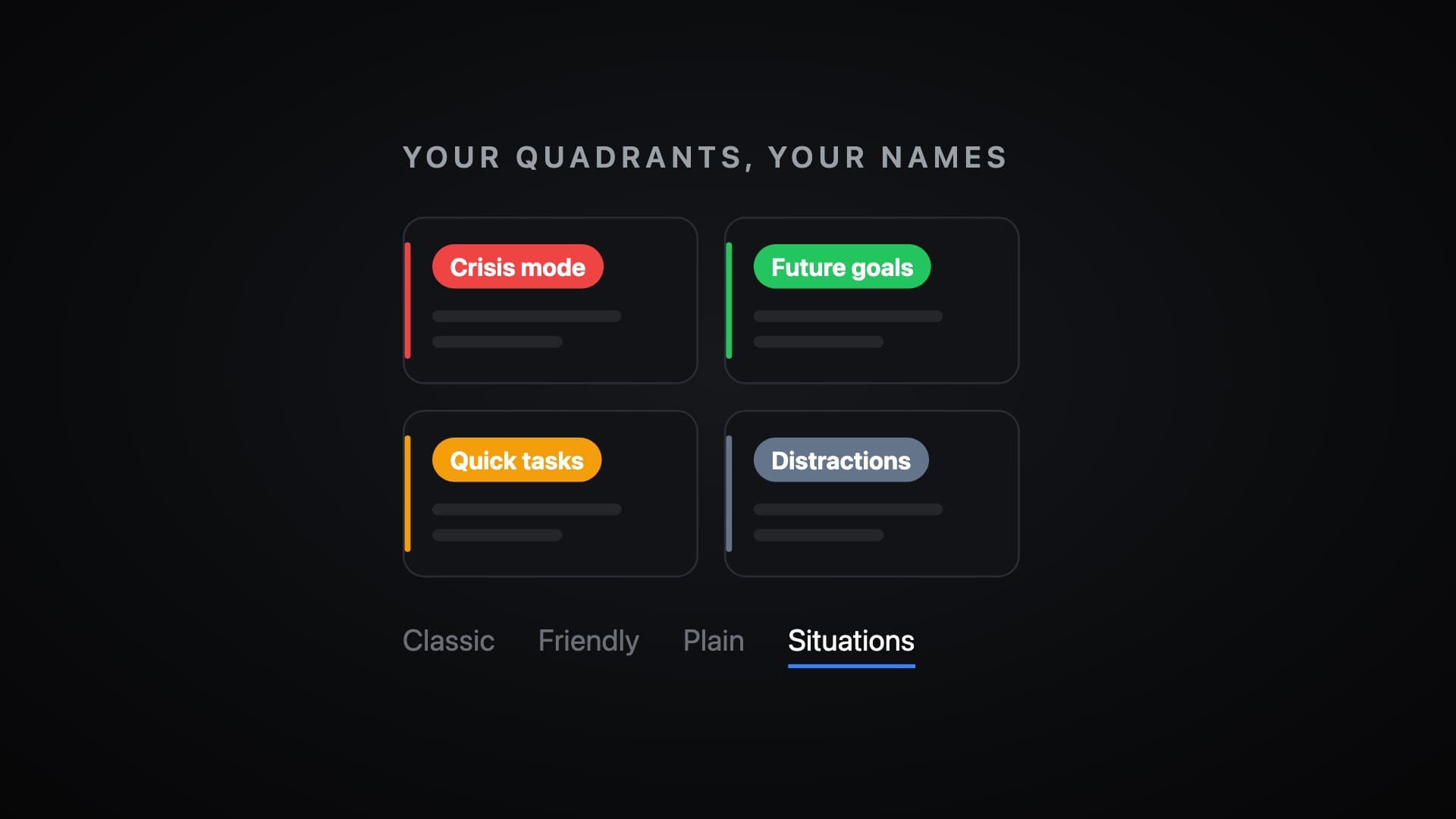
Some people think in "Crisis mode" and "Distractions". Some think in "Deep Work" and "Admin". Some use the words their team already uses. Until now, Glento made everyone use the same four labels.
Now you can rename the four quadrants.
The short version
- Pick a style in Settings → Quadrant names: Classic, Friendly, Plain or Situations.
- Or type your own name for any quadrant.
- Rename in place: tap and hold a quadrant name on your phone, or double-click it on the web.
- Your names show on the matrix, task lists and home-screen widgets.
- Your Weekly Review uses your names when it coaches you.
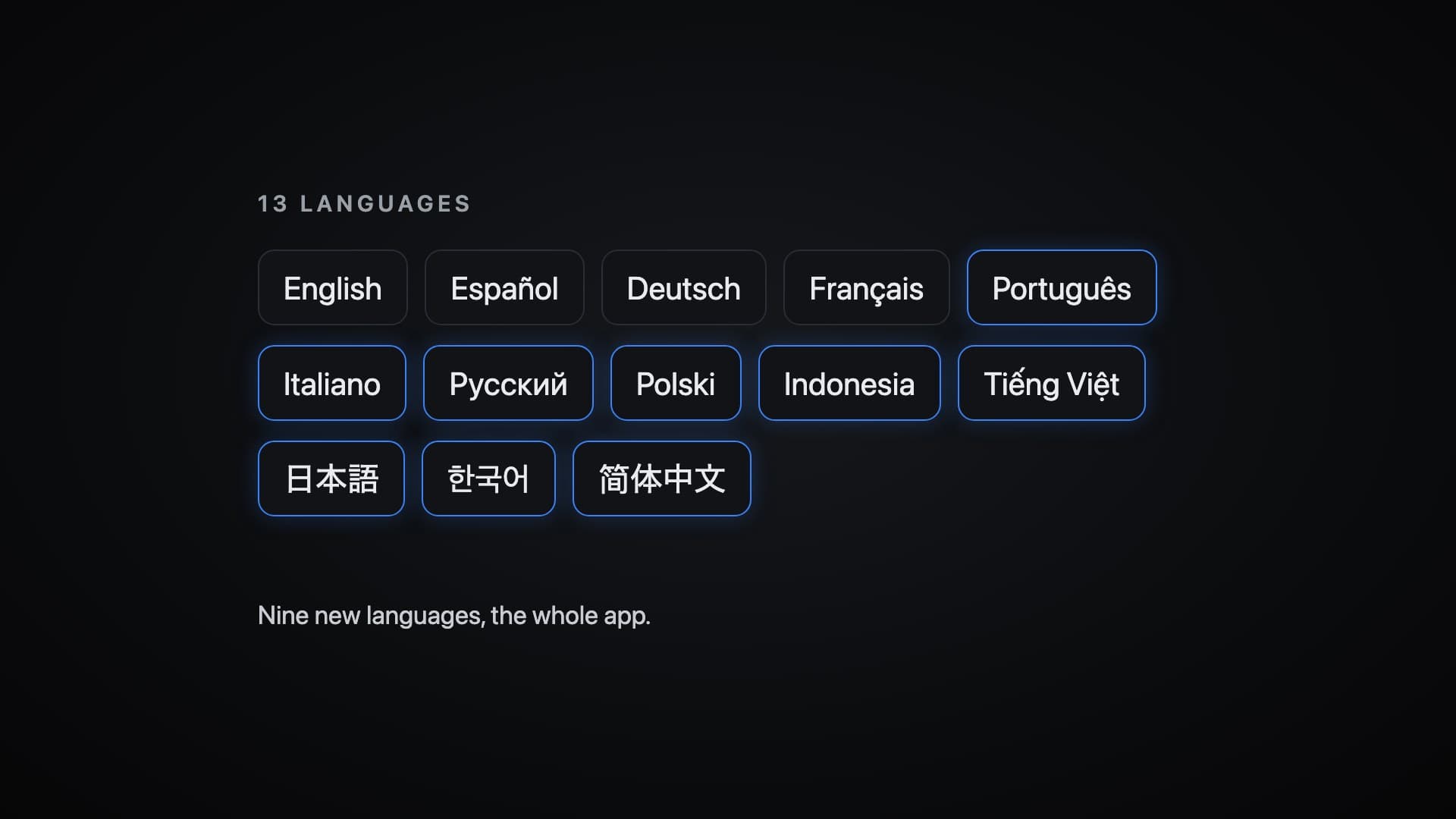
- Every style is translated into all 13 of Glento's languages.
Pick a style
Open Settings → Quadrant names and choose one of four styles:
- Classic: Do First, Schedule, Delegate, Don't Do
- Friendly: Do First, Schedule, Quick Wins, Drop It
- Plain: the textbook labels, Urgent & Important and so on
- Situations: Crisis mode, Future goals, Quick tasks, Distractions
The screen shows your matrix as you change it, so you can see each style before you commit to it.
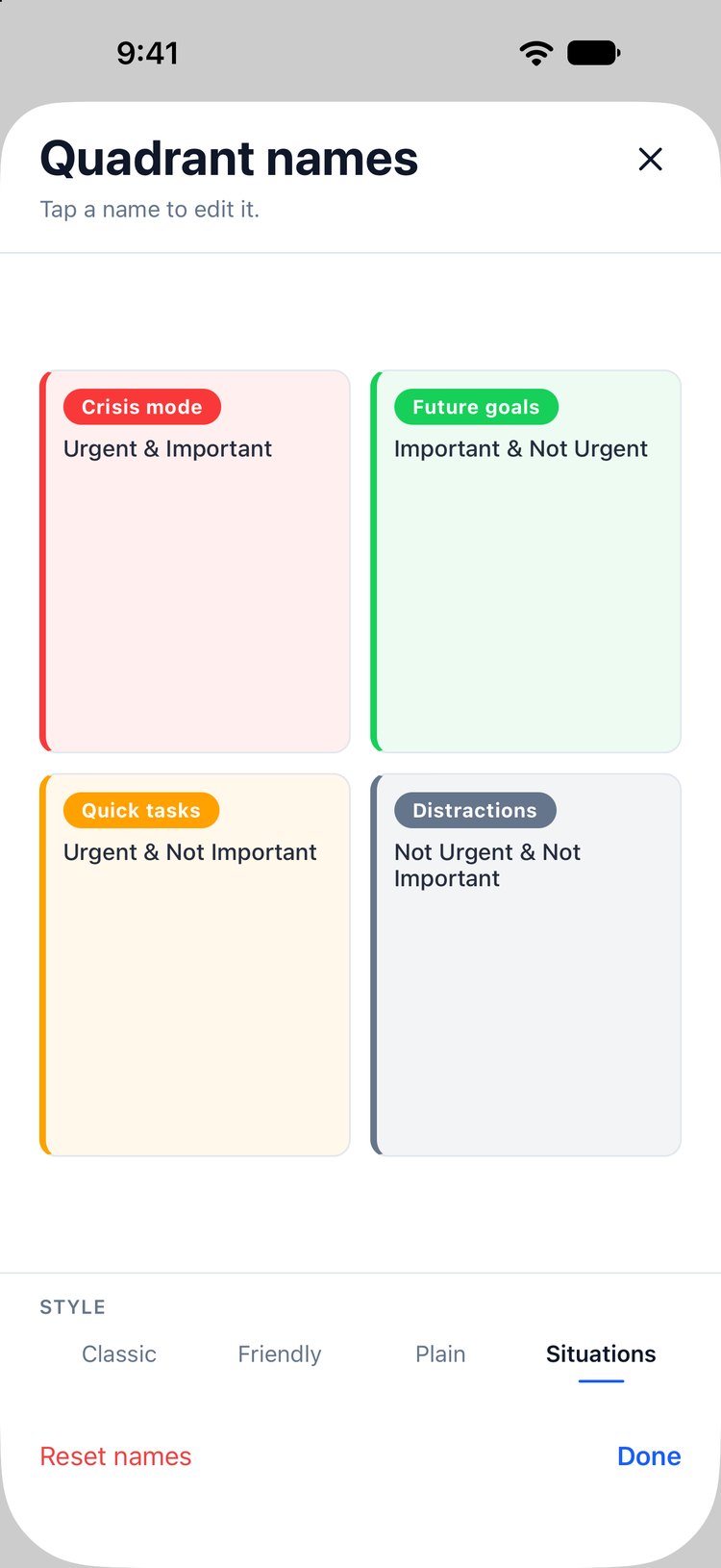
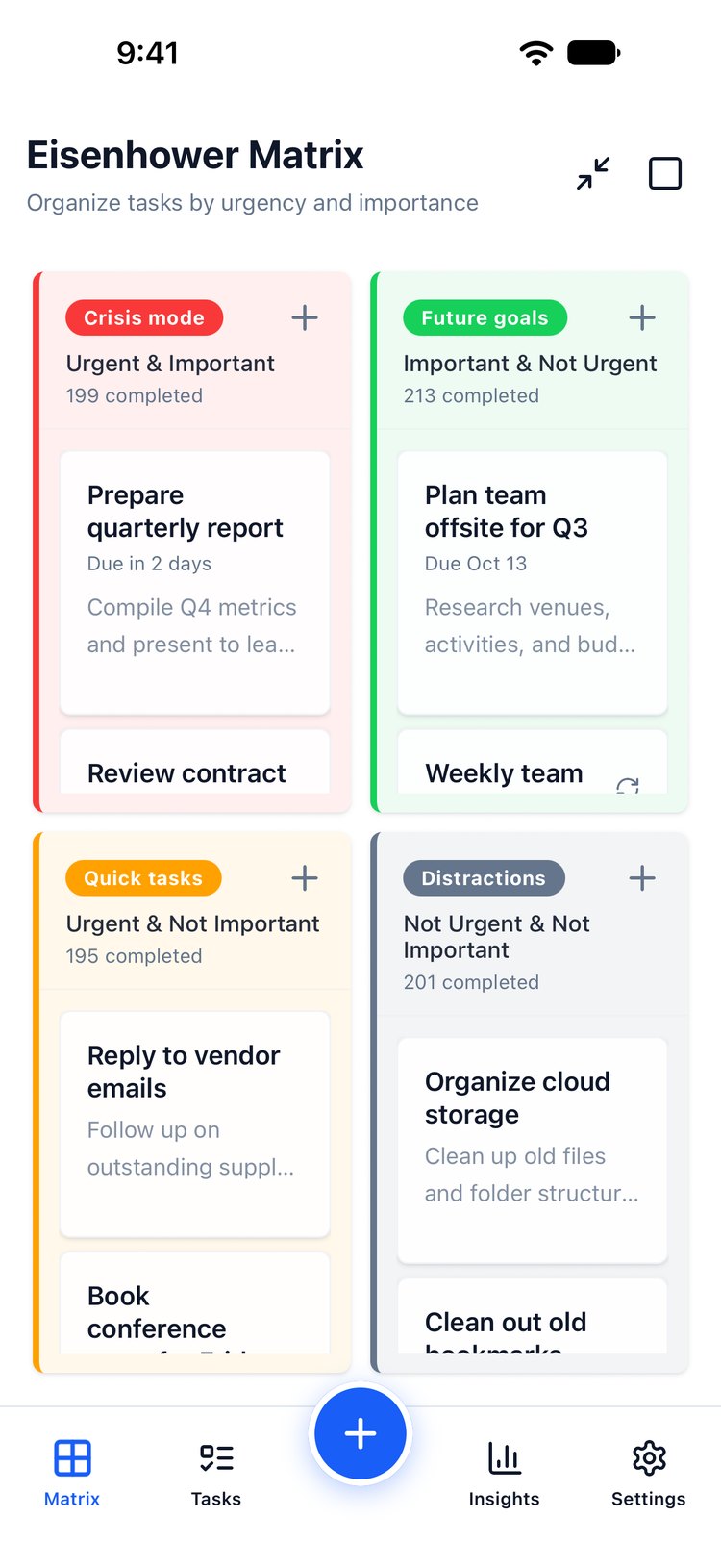
Every style is translated, so it reads naturally in all 13 languages Glento speaks. You can also pick a style while setting up the app.
Or use your own words
Skip the styles and type your own name for any quadrant, on the same screen. Or do it right where you work: on your phone, tap and hold a quadrant name on the matrix; on the web, double-click it.
Mix and match if you like. Keep "Do First" and call the second quadrant "Deep Work". Clear a name and it goes back to the style's version.
Your names show up on the matrix, in your task lists and on your home-screen widgets. They stay on your device and only change what you see. Your tasks, sync and everything else work exactly as before.
Your coach uses your names too
A renamed matrix would feel half-finished if your Weekly Review still talked about "Do First" and "Schedule". So it doesn't. Your Weekly Review coaching now calls each quadrant by the name you gave it, in whatever language you use.
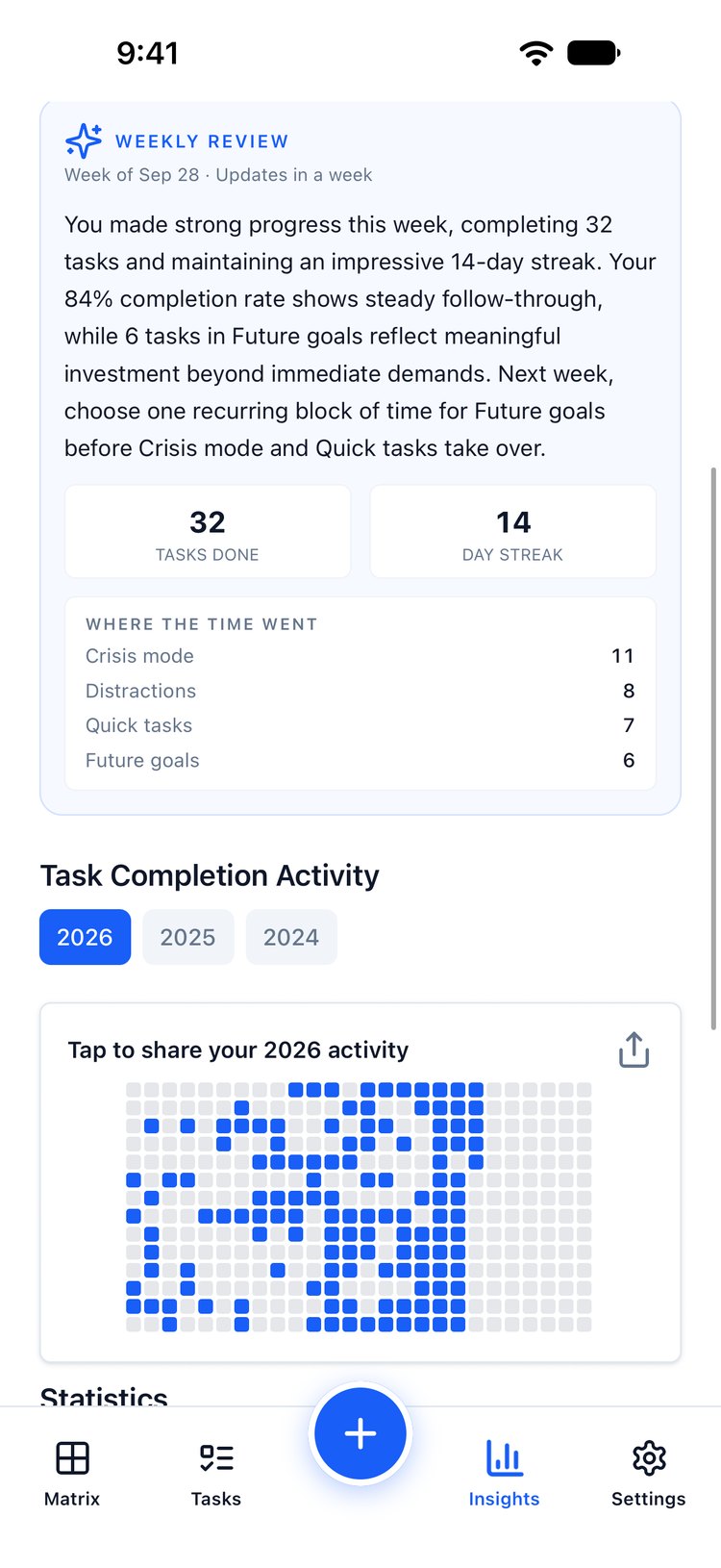
Your review is written once a week, so a name you change today shows up in the next one.
Why the quadrants still work the same
Renaming changes the words, not the method. Each quadrant still means the same thing: urgent and important, important but not urgent, urgent but not important, and neither. Glento's AI still sorts tasks by those meanings, so a suggestion lands in the right place whatever you call it.
Getting it
Renaming quadrants is in Glento 5.3 on the App Store and Google Play, and in the web app at app.glento.ai. It arrived alongside nine new languages.
Download Glento on the App Store · Get it on Google Play · Open the web app